
Create application
Applications are registered entities within Mercado Pago that act as a unique identifier for managing the authentication and authorization of your implementations. They represent the link between your development and Mercado Pago and constitute the first stage in carrying out the implementation.
To create an application, you have three options available: with an AI agent from your code editor, with the Mercado Pago Developers Assistant, or manually from the integration Panel.
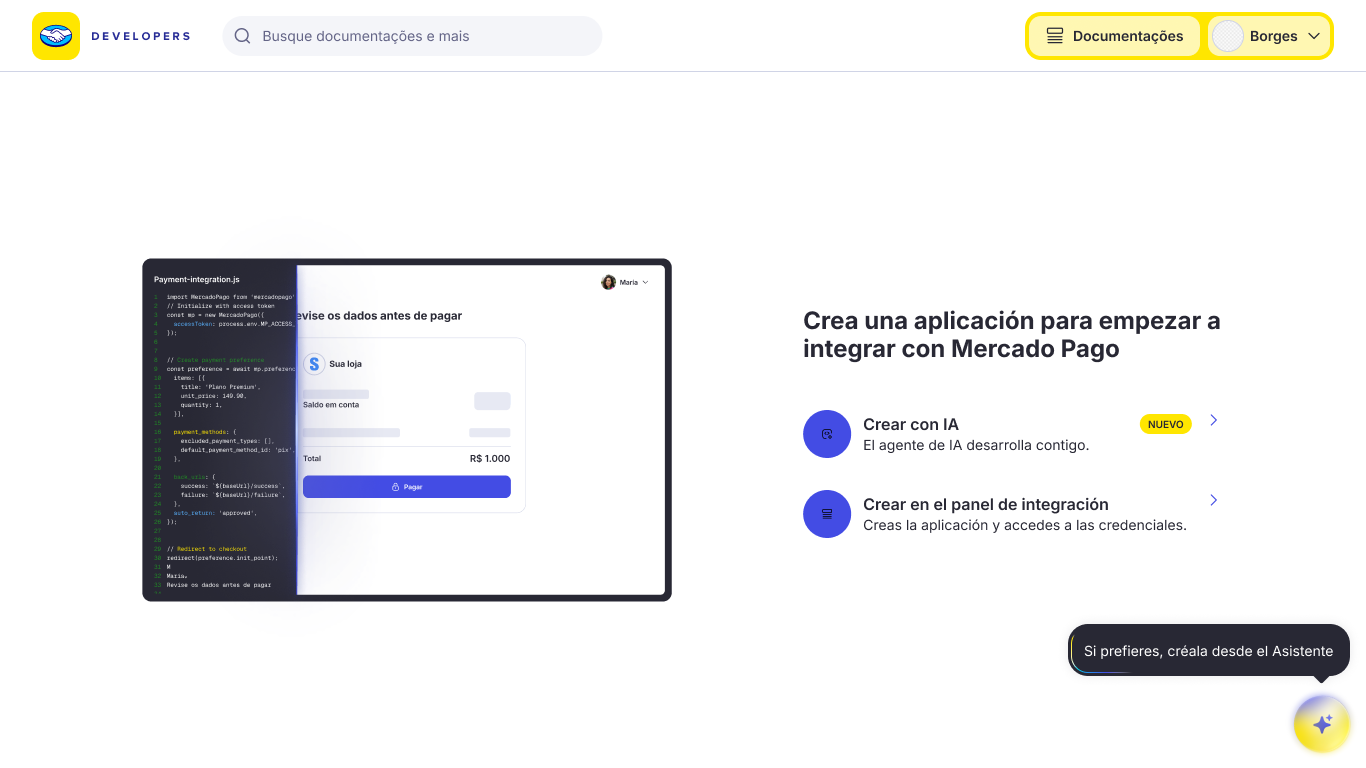
You can use our AI resources to create your application from your IDE or agent in 2 steps. The agent will take care of creating the application in the integration panel and guiding you through the entire configuration.

To do this, you have two options: installing the Mercado Pago Plugin, available for Claude Code and Codex, or configuring the Mercado Pago MCP Server, available for editors such as VS Code and Cursor. Follow the instructions for the option you choose.
Claude Code
Run the following command to install the Mercado Pago plugin for Claude Code.
bashclaude plugin install mercadopago@claude-plugins-official
Once installed, run the /mp-connect command to authorize the agent's access to your Mercado Pago account.
Codex
Run the following commands to install the Mercado Pago plugin for Codex.
bashcodex plugin marketplace add mercadopago/mercadopago-codex-marketplace
codex plugin add mercadopago@mercadopago-codex-marketplace
Once installed, run the /mp-connect command to authorize the agent's access to your Mercado Pago account.
VS Code
Add the following configuration to your mcp.json file.
json{
  "mcp": {
    "servers": {
      "mercadopago-mcp-server": {
        "type": "http",
        "url": "https://mcp.mercadopago.com/mcp"
      }
    }
  }
}
Cursor
Add the following configuration to your mcp.json file.
json{
  "mcpServers": {
    "mercadopago-mcp-server": {
      "url": "https://mcp.mercadopago.com/mcp"
    }
  }
}
Finally, ask the agent to create your application in Mercado Pago. If you'd like, you can copy and paste the following prompt.
plainI want to implement Mercado Pago on my e-commerce platform. Recommend the ideal payment solution for my project, create the application, and guide me through the implementation.
In Your integrations, you will be able to view the list of all your created applications and access the application details for each of them.
Obtain test credentials
During the implementation process, use test account’s credentialsLogin details for a test account, used to simulate the behavior of a seller or buyer. You can view and manage them in the Test accounts section.Manage test accounts to perform all necessary configurations and validations, ensuring that no real payments are made in production. These credentials simulate the information of a production account, but in a secure testing environment.
Keep using the test credentials throughout the entire development phase. Only switch to production credentials once the system has been fully validated and is ready to go live.
To obtain the test credentials, follow the steps below.
1. Create a test seller account
Test accounts are users who have the same functionalities as a real Mercado Pago user, but allow you to test the operation of your development without compromising real data.
Follow the steps below to create a seller test user.
- On Mercado Pago Developers, navigate to Your integrations and click on the card corresponding to your application.
- On the Application details, go to the Test accounts section and click the + Create test account button.

- On the "Create new account" screen, enter a description to identify the account.
- Next, select the country of operation of the account, bearing in mind that this information cannot be edited later.
- Inform the type of account you want to create. If you're integrating for someone else, select Integrator. If you're the store manager, select Seller.
- In the available money field, it is not necessary to indicate any value, because it is a seller or integrator test user.
- Accept the Privacy Statement and the Terms and Conditions, and click on Create test account.

Create a test application and obtain credentials
-
To log into your test account, open an incognito window, go to Mercado Pago Developers, and click the Sign in button located in the upper right corner.
-
Log in as the seller test user created in the previous step. For this, use the username and password assigned to it. Check this data in the Test accounts section.
-
Still in the incognito window, within Your Integrations, click on Create application and follow the steps to create an test applicationEntity registered in Mercado Pago that identifies an integration and stores its settings and credentials.View application details linked to your seller user.
-
After creating the applicationEntity registered in Mercado Pago that identifies an integration and stores its settings and credentials.View application details, select it and go to the Application details. In the left side menu, go to Production credentials to find the Public Key and Access Token of the test userPublic and private keys of the testing application created with your test user..